Search Site


Lawyers-Mail settings: Android

POP and IMAP Email Setup
- From the Home screen, touch Menu
 > Settings
  > Accounts
  > Add account
  > Email
  .
. - Enter your Email address and Password, and touch MANUAL SETUP.

- Select Manual setup
- Select the type of email account you are setting up. You may choose POP3 account or IMAP account, or Microsoft® Exchange ActiveSync®. We’ll walk you through setting up a POP3 and IMAP accounts.
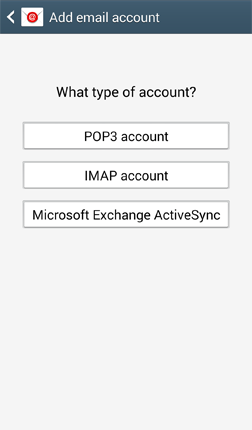
- Enter your incoming server settings. This should include your Username, Password, server, Security type, Port number, and Delete email from server setting. Then touch Next.
For POP3
- POP3 server: lawyers-mail.com
- Security Type: SSL(Accept all certificates)
- Port: 995
For IMAP
- IMAP server: lawyers-mail.com
- Security Type: SSL(Accept all certificates)
- Port: 993
POP3 settings

IMAP settings

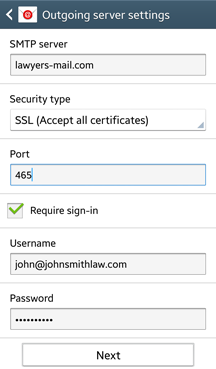
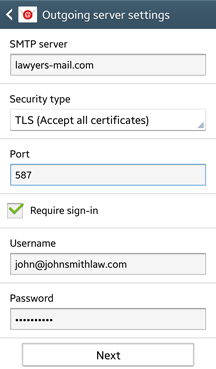
- Your device will attempt to connect to the incoming server with the settings you have entered. If the connection is unsuccessful, you will be prompted to Edit details; confirm your settings and try again. If the connection is successful, you will be taken to the Outgoing server settings screen. Enter your outgoing server settings. You may choose between the SSL or TLS setup. Choose TLS if SSL does not work for you.
- SMTP server: lawyers-mail.com
- Security Type: SSL(Accept all certificates)
- Port: 465
- SMTP server: lawyers-mail.com
- Security Type: TLS(Accept all certificates)
- Port: 587
- This should include your SMTP server, Security type, Port number, Require sign-in, Username, and Password. You may choose between the SSL or TLS setup. Then touch Next.
- Your device will attempt to connect to the outgoing server with the settings you have entered. If the connection is unsuccessful, you will be prompted to Edit details; confirm your settings, and try again. Choose TLS if SSL does not work for you. If the connection is successful, you will be taken to the Account options screen. Touch Next when you have finished making your selections.
- You will be asked to give this internet mail account a unique on-screen name. The unique account name is used to differentiate this account from other email accounts on your mobile device. Enter Your name as you would like it to be displayed on outgoing messages.
Touch Done to complete the setup process.
SSL(outbound) |
TLS(outbound) |
SMTP(SSL)
|
SMTP(TLS)
|