


Search Site


Lawyers-Mail settings: Apple (desktop)

IMAP
For POP3 Click Here
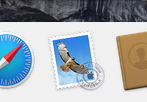
- Click on the Apple Mail Icon in the Launch Bar
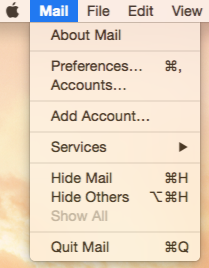
- If you are adding an additional account, go to the Mail menu and choose Add Account.
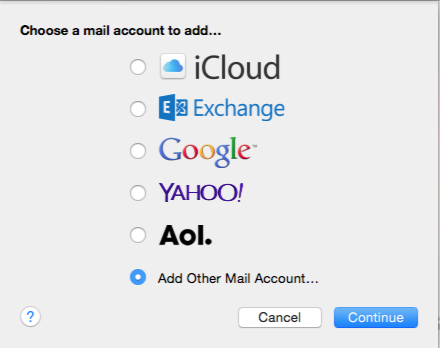
- Choose “Add Other Mail Account…” as the type of new account and click Continue.
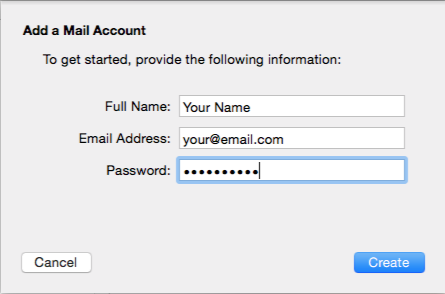
- Fill in Your Name (this will show in the sender label on your emails), your full email address and your password, and click Create.
- The system will tell you the email needs to be manually configured. Click Next.

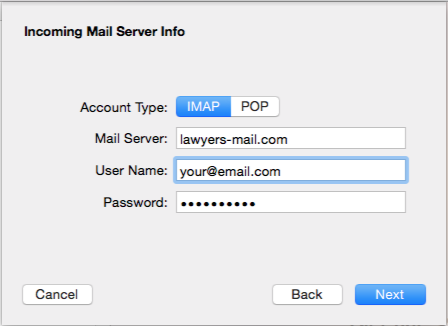
- Choose an Account type (we recommend IMAP), enter your mail server as lawyers-mail.com, your user name as your full email address, and your password should be in place from the previous screen. Click Next.
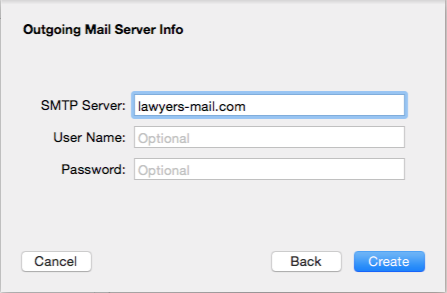
- Fill in the Outgoing Mail Server as lawyers-mail.com. You can leave the optional fields blank. Click Create.
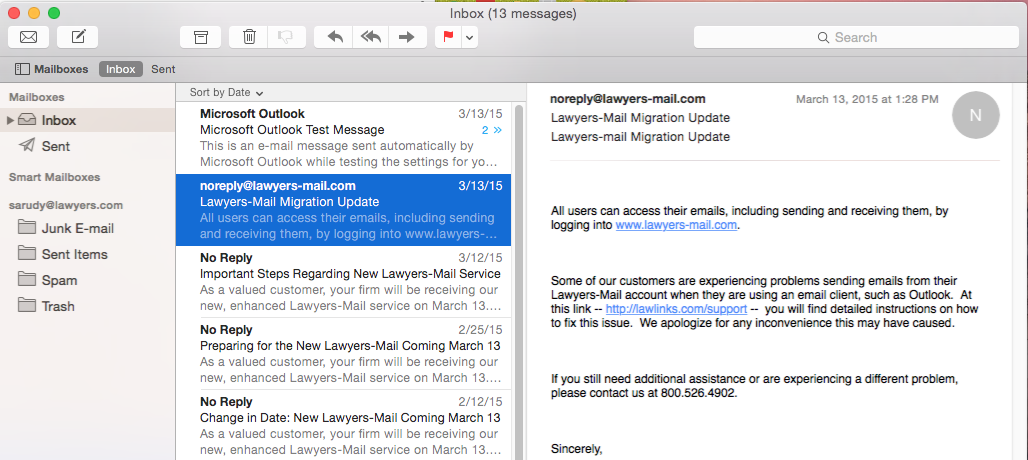
- Your email inbox should appear with your messages.
POP3
- Click on the Apple Mail Icon in the Launch Bar
- If you are adding an additional account, go to the Mail menu and choose Add Account.
- Choose “Add Other Mail Account…” as the type of new account and click Continue.
- Fill in Your Name (this will show in the sender label on your emails), your full email address and your password, and click Create.
- The system will tell you the email needs to be manually configured. Click Next.
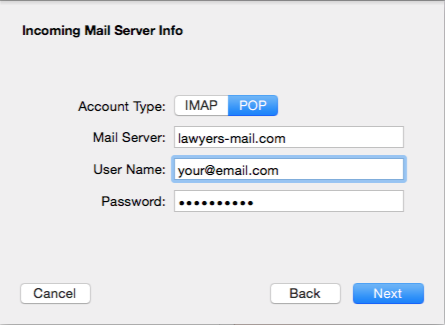
- Choose an Account type (POP in this example), enter your mail server as lawyers-mail.com, your user name as your full email address, and your password should be in place from the previous screen. Click Next.
- Fill in the Outgoing Mail Server as lawyers-mail.com. You can leave the optional fields blank. Click Create.
- Your email inbox should appear with your messages.
Troubleshooting Port Settings
IMAP – Incoming Port
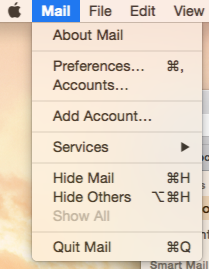
- Go to the Mail menu and choose Preferences.
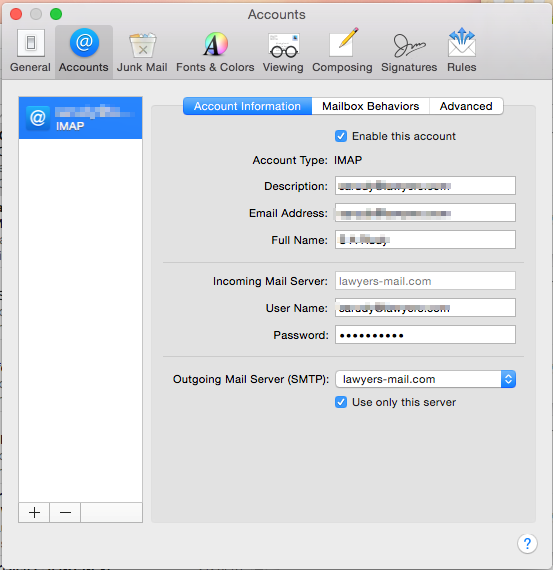
- Click on the Accounts tab. (if you have more than one account, highlight the one you are troubleshooting.)
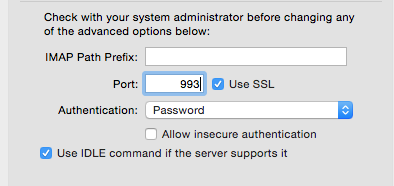
- Click on Advanced to see the server options.

- Port 143 (seen above) is the default, but if that is not working for you, replace it with 993. Make sure Use SSL is checked and Authentication is set to “Password”. If pulling down Password prompt you for a user id and password, use your full email and password.
- Close the window and Save when prompted.
IMAP – Outgoing Port
- Go to the Mail menu and choose Preferences.
- Click on the Accounts tab. (if you have more than one account, highlight the one you are troubleshooting.)
- Under the Account Informatyion section, click on the arrows next to the Outgoing Main Server (SMTP) and choose “Edit SMTP Server List…”
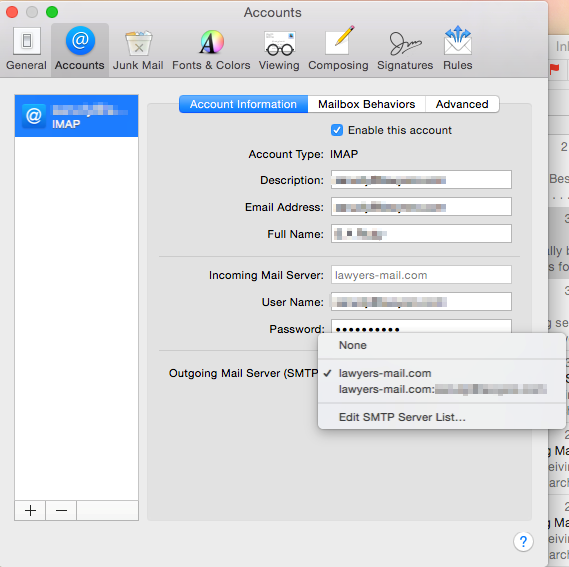
- Highlight the line with your email address showing under “In Use By Account” and click on the Advanced button.
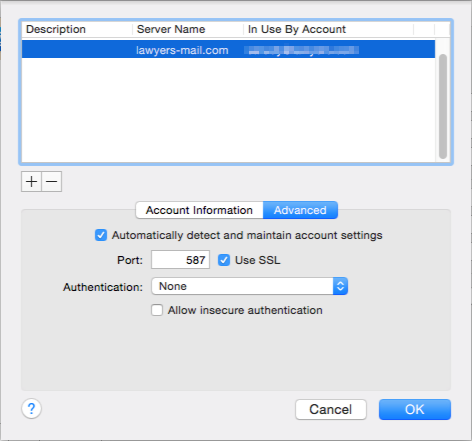
- Port 587 (seen above) is the default, but if that is not working for you, replace it with 465. Make sure Use SSL is checked and Authentication is set to “Password”. If pulling down Password prompt you for a user id and password, use your full email and password.
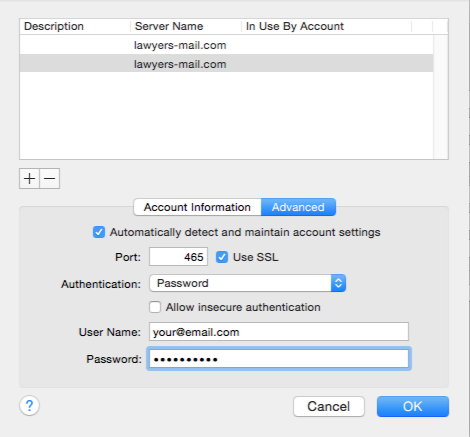
- Click OK and then close the window and save when prompted.
POP – Incoming Port
- Go to the Mail menu and choose Preferences.
- Click on the Accounts tab. (if you have more than one account, highlight the one you are troubleshooting.)
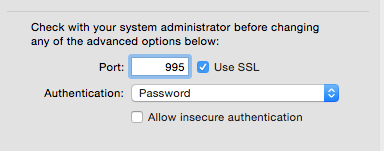
- Click on Advanced to see the server options.
- Port 110 (seen above) is the default, but if that is not working for you, replace it with 993. Make sure Use SSL is checked and Authentication is set to “Password”. If pulling down Password prompt you for a user id and password, use your full email and password.
- Close the window and Save when prompted.
IMAP – Outgoing Port
- Go to the Mail menu and choose Preferences.
- Click on the Accounts tab. (if you have more than one account, highlight the one you are troubleshooting.)
- Under the Account Informatyion section, click on the arrows next to the Outgoing Main Server (SMTP) and choose “Edit SMTP Server List…”
- Highlight the line with your email address showing under “In Use By Account” and click on the Advanced button.
- Port 587 (seen above) is the default, but if that is not working for you, replace it with 465. Make sure Use SSL is checked and Authentication is set to “Password”. If pulling down Password prompt you for a user id and password, use your full email and password.
- Click OK and then close the window and save when prompted.


