


Search Site


Lawyers-Mail settings: Windows (desktop)

Windows – Outlook 2016
This is the guide for setting up Lawyers-Mail on Outlook 2016.
- Start Outlook 2016
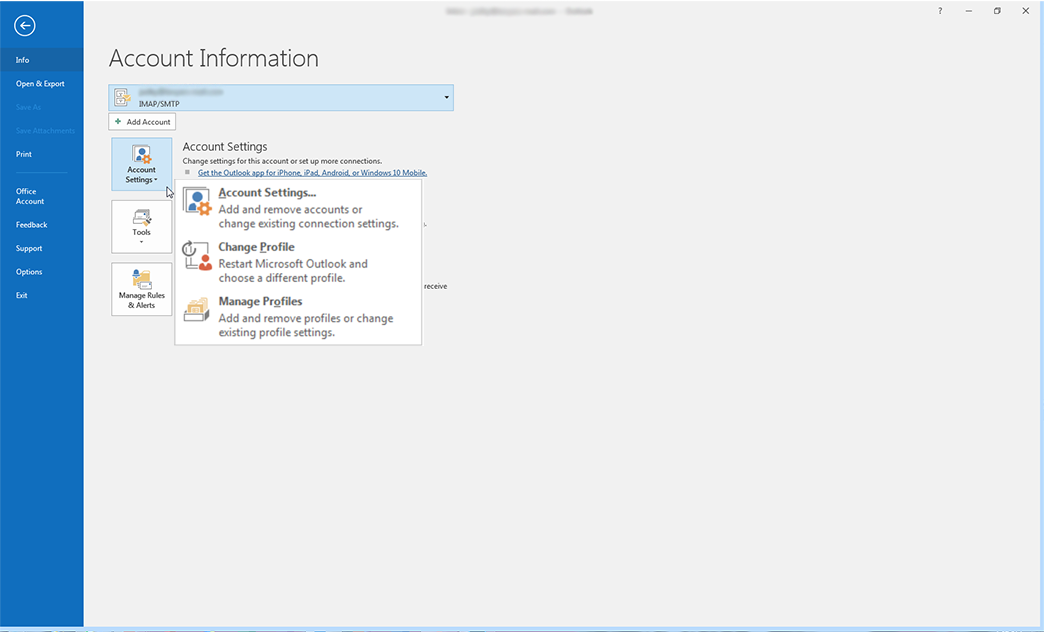
- Select ‘File’
- Select ‘Info’
- Select Account Settings
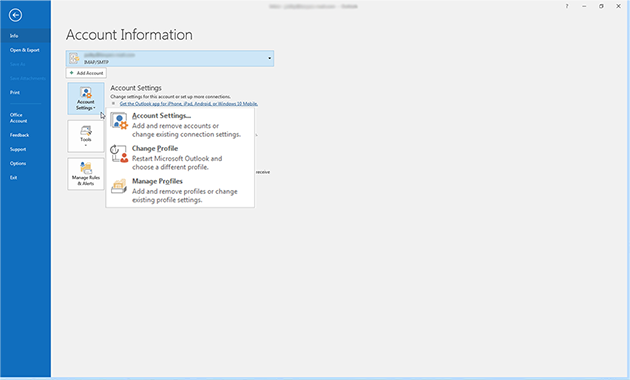
- Make sure your email address is selected
- Click ‘Change’
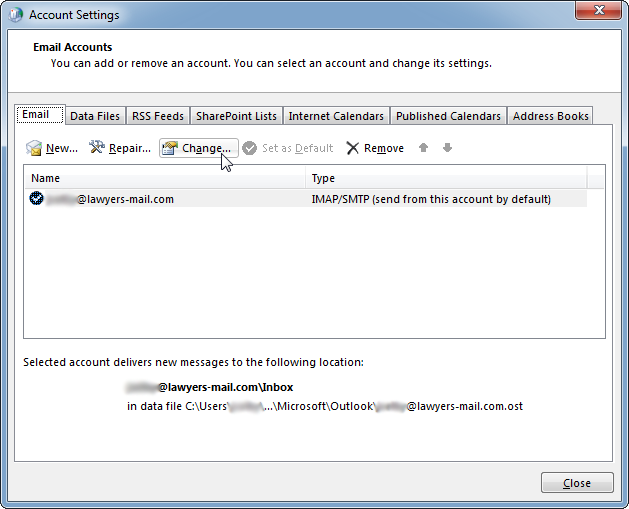
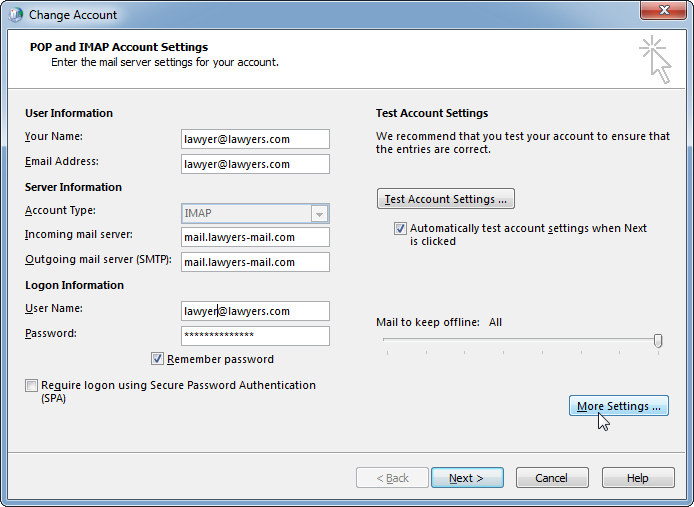
- Verify basic account settings, then click ‘More Settings’
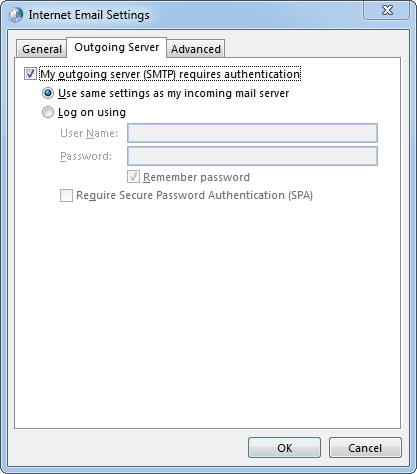
(If you instead see a different window with buttons marked “Reset Mail Settings” and “Next”, Please scroll to the bottom of this page.) - Verify the outgoing sever settings, match the image below
- Click ‘Advanced’ tab
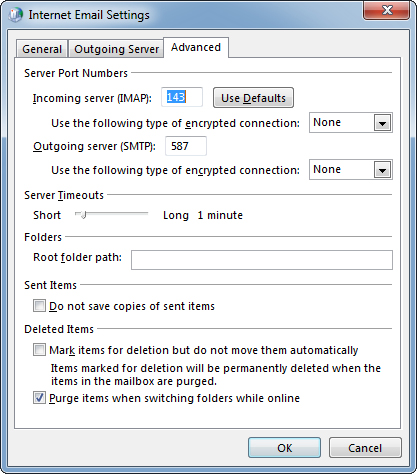
- Input the following values for IMAP:
- Incoming Server (IMAP): 143
- Encrypted Connection: AUTH/None
- Outgoing Server (SMTP): 587 or 25
- Encrypted Connection: AUTH/None
- (If on POP3) Input the following values for POP3:
- Incoming Server (POP3): 110
- Encrypted Connection: AUTH/None or Auto
- Outgoing Server (SMTP): 587 or 25
- Encrypted Connection: STARTTLS or Auto
- Click ‘OK’
- Test Account Settings
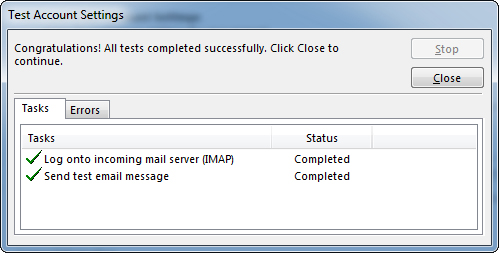
If test fails, double-check you’ve entered the settings correctly. - Finish the wizard
- If the “Test Account Settings”, window is still open, click ‘Close’
- Click ‘Finish’ to finish the “Change Account” wizard
- Click ‘Close’ to close “Account Settings” window
What if I don’t see the settings window, when I click “Change”
When you click “Change” and you see ‘Reset Mail Settings’ and ‘Next’ instead of server settings.
- Close Outlook program completely
- Click, Windows Start menu, scroll down the apps to “Windows System” folder, Click “Control Panel”
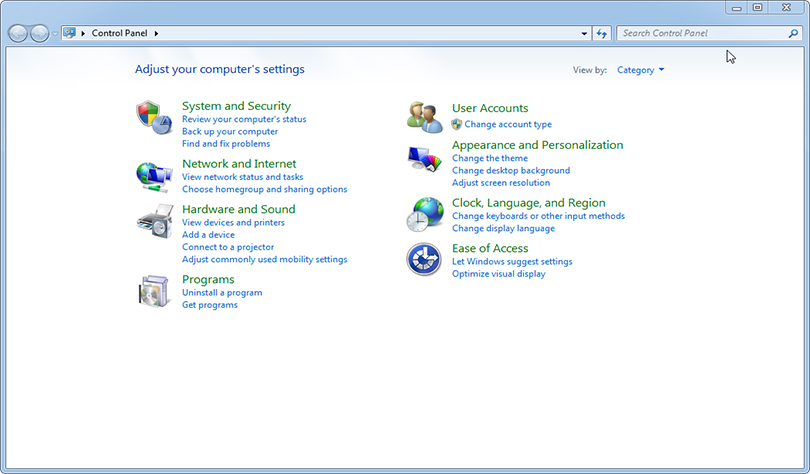
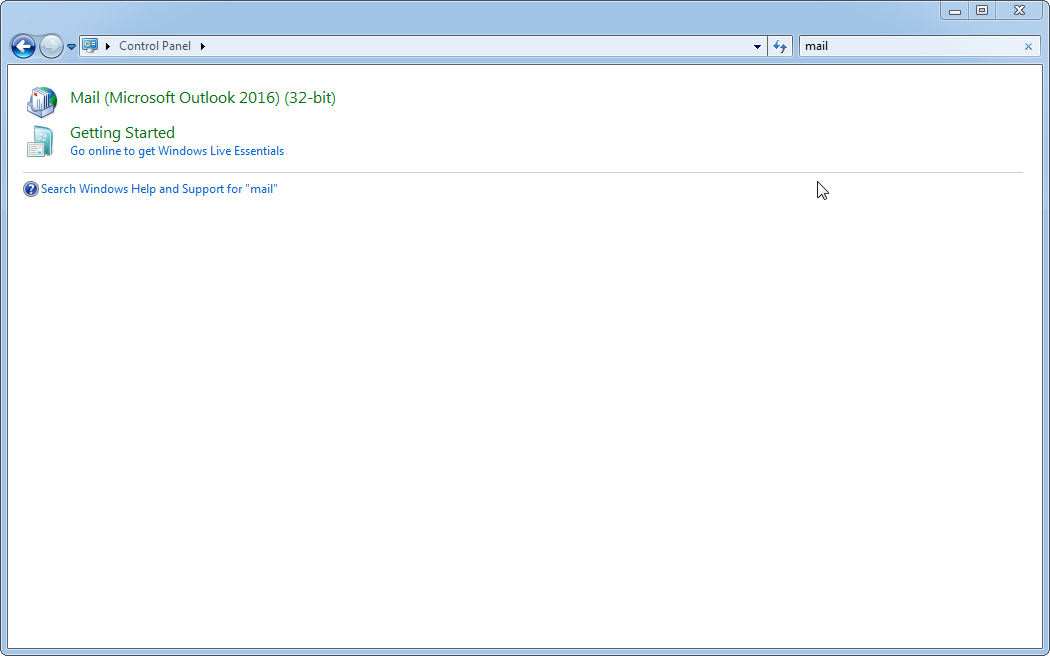
- Search the “Control Panel” for the ‘mail’
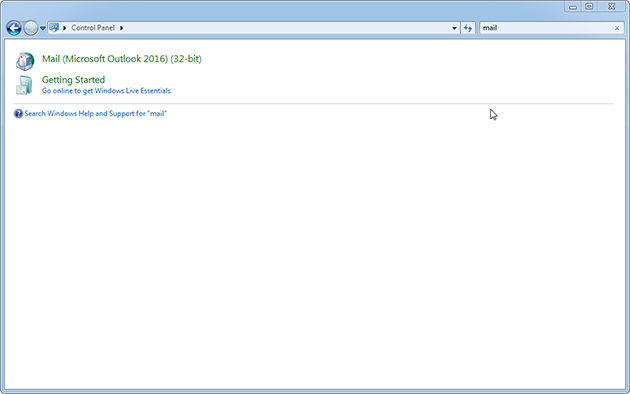
- Click the ‘Mail (Microsoft Outlook 2016) result’
- Click the ‘Email Account…’ button
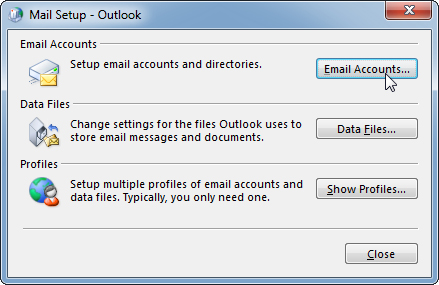
After doing this, you should be able to highlight the account and click the ‘Change’ button to see the settings window described in step #6 above


